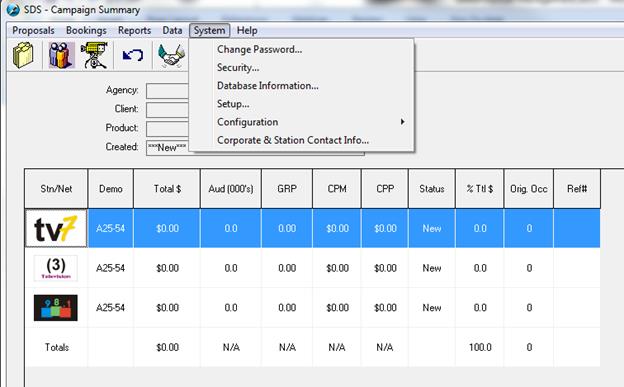
From the Campaign Summary window, go to SYSTEM, select SECURITY
•
•
•The following screen will appear:
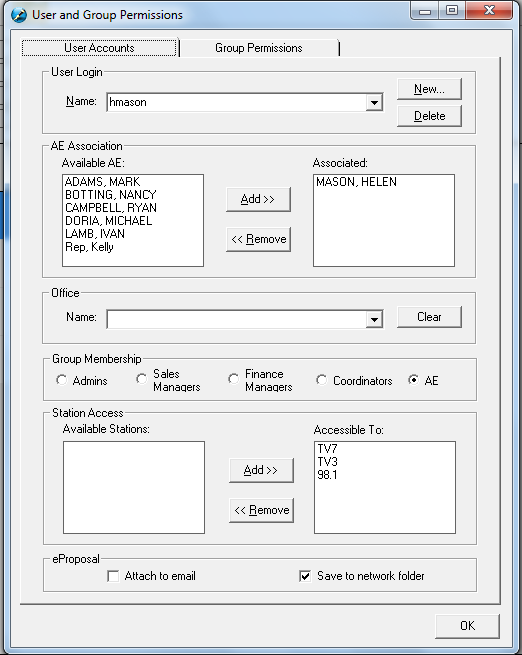
User Login – this is the name that appears when created in the system (before creating this, verify the user login and match it). After choosing the name from the drop down, you can change the settings for that user. Clicking the New button will create a new user; clicking the Delete button will delete the user, but will not delete contracts/proposals out of the system
Rep Association - Available Reps – this list is derived from Traffic. To give the chosen user access to specific Reps, select them and move them to the Associated Reps box (double click or highlight them and click on the Add button)
Office – the Offices are set up in Traffic or in Sales, and can be associated to a specific username (for reporting purposes). Clicking Clear will clear the field, but not delete the Office from the system
Group Membership – this depicts the user level of the name selected in the drop down under User Login. These items are further described in the Group Permissions tab
Admins – this gives the user administration rights
Sales Managers – choose this option when creating a Sales Manager
Finance Managers – choose this option when creating a Finance Manager
Coordinators – Sales Assistant
Reps – choose this when creating a Rep
Station Access – from the Available Stations box, select them and move them to the Accessible To box by clicking on the Add button. These will be the stations that the user will have access to, and be able to book to
eProposal – when emailing a proposal, it can automatically be attached to a new email via outlook (if outlook is installed on the computer) or it can be saved to a network folder. This needs to be set up first in the system wide settings at the station level (inside the schedule builder, there is a menu item labeled Settings, and choosing System Wide Settings on the Traffic Connection tab and on the Advanced tab)
Group Permissions Tab
Each of the “Groups” has different levels of permissions. As with all of the security options in SDS, each level can be tailored to what the administrator sees fit.
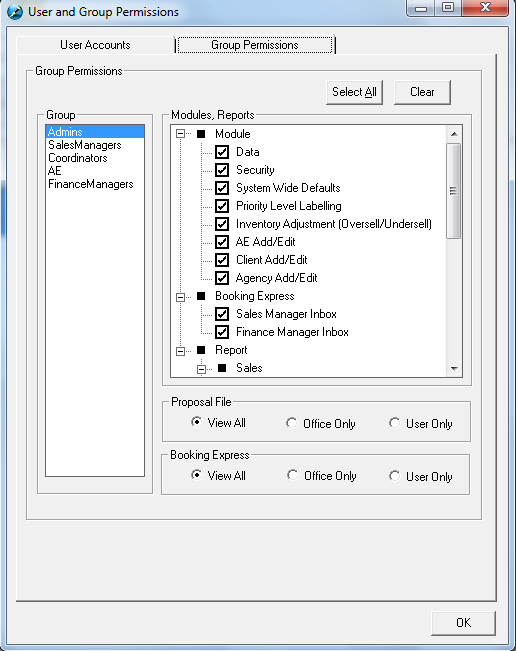
•The following is definitions for the Group Permissions tab
Module:
Data – this menu contains the ability to import rate cards into the system and manage them through an area called Commercial Inventory Control (CIC).
Security – will give the user access to the security settings
System Wide Defaults –ability to access to change the settings at each station, which will affect all users that have access to that station
Priority Level Labeling – allows the user to change the labels to the priority levels in the system. This affects all users, regardless of the stations they have access to
Inventory Adjustment (Oversell/Undersell) – this area of the system is located in CIC and gives the ability to have more effective control over avails
AE Add/Edit – gives the user the ability to add Account Executives into the system
Client Add/Edit – gives the user the ability to add in new clients
Agency Add/Edit - gives the user the ability to add in new agencies
•
Booking Express:
Sales Manager Inbox – gives the user access to approve orders before going to Traffic
Finance Manager Inbox - gives the user access to approve orders before going to Traffic
Reports – Sales/Management – these are a series of reports that can be run in Sales. Please see the help file (by pressing F1 while logged into SDS Sales) to get more information
Access to the Proposal File/Booking Express – there are three options – View All, Office Only, and User Only. This pertains to the access level of each of the Groups (Admins, Sales Managers, Coordinators,Account Executives, and Finance Managers) and will affect all of the users who are set up as this type of user’s profile.
View All – will allow the user to see all Reps and Orders in the system. When choosing this option, there does not need to be any “AE Association” defined n the User Accounts tab
Office Only – will allow the user to see all of the AE’s and Orders that are associated to their Office location
User Only – will allow the user to only see their orders
While all of these security levels can be altered, the following is the recommendation of what options should be selected for each group.
Admin – all options
Sales Managers – Data, AE Add/Edit, Client Add/Edit, Agency Add/Edit, Booking Express – Sales Manager Inbox, Reports – Sales Activity, and all reports under Management
AE – Client Add/Edit, Agency Add/Edit, all Sales Reports (Sales Activity, Master Planner, etc)
Coordinators – View All – same level as Account Executives
Finance Manager – Booking Express - Finance Manager Inbox, Client Add/Edit, Agency Add/Edit
•