A request was made by our client base for the ability to copy a schedule from one station to another. We are now pleased to announce that this feature is now available!
A few things to take note of when using this functionality of the system:
•Everything will be copied from the Source station - the rate on the line, spots per week, line comments and rules (if the program matches)
•The names of the day parts and features should be consistent across the stations that will be copied – the system will look to the name first
•If billing lines are on the source proposal, they will be copied to the destination station if the checkmark is enabled
•After copying the proposal to one or more stations, the AE can then go into each station and fine tune it, adding day parts/features to each station
•Once copied, they are standalone proposals, and cannot be copied a second time. For example if changes are made to the original station, these revisions cannot be “copied” again to the other station
•As always, the header is shared across all stations, so any changes that are made to one, will affect the other
To use this new function in SDS Sales, please use the following as a guideline.
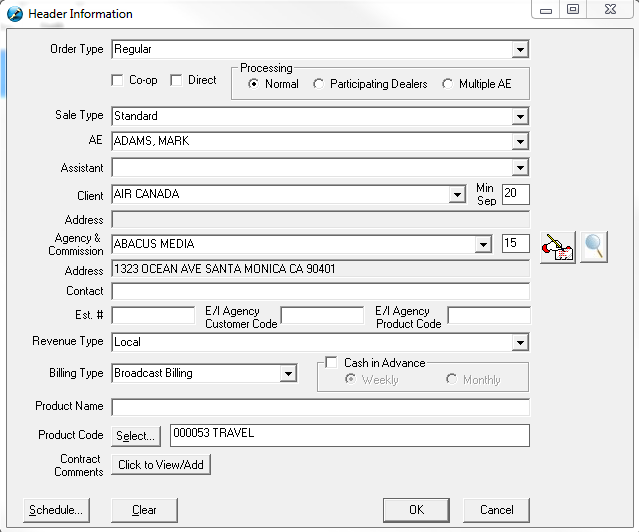
Build your Header Information as per usual, filling out all information as required
Build the schedule, adding in the day parts and features, and adding in any placement rules (DSA), changing the rates, etc

At the top of the screen, there is a new button labeled “Copy to Station.” Clicking this will bring up a new screen


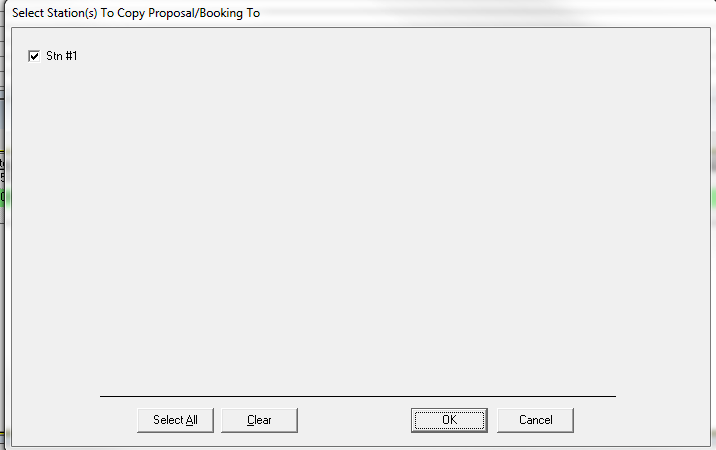
Check mark the station that the proposal should be copied to
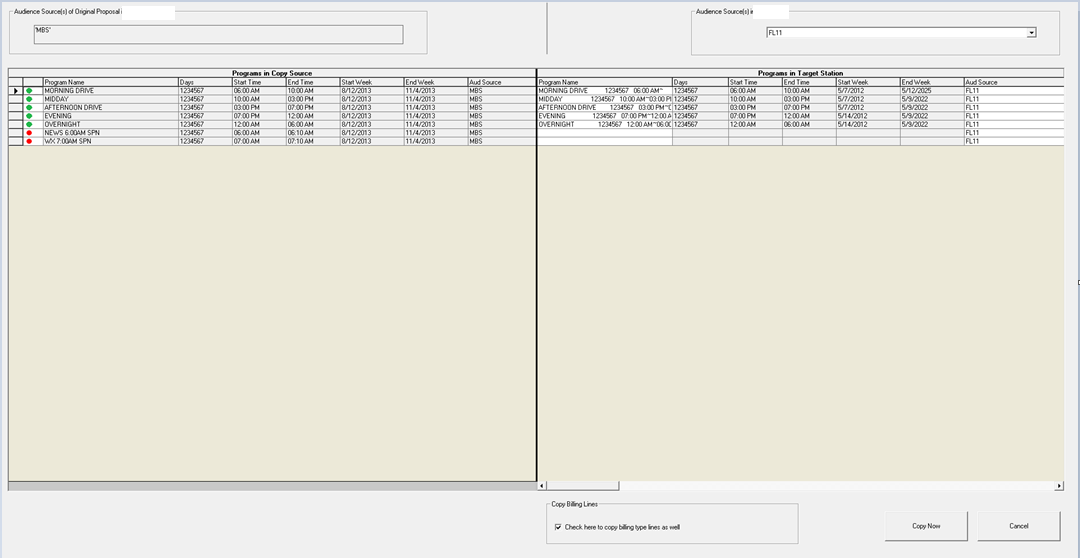
A new window will appear, indicating which programs match between the source station, and the destination station. If all programs match from the source to the destination, there will be a green indicator on the Source side of the screen. Note that the dates which appear on the Source side (the right side of the screen) are not the dates that will be copied. These are a reflection of what is at the rate card level.


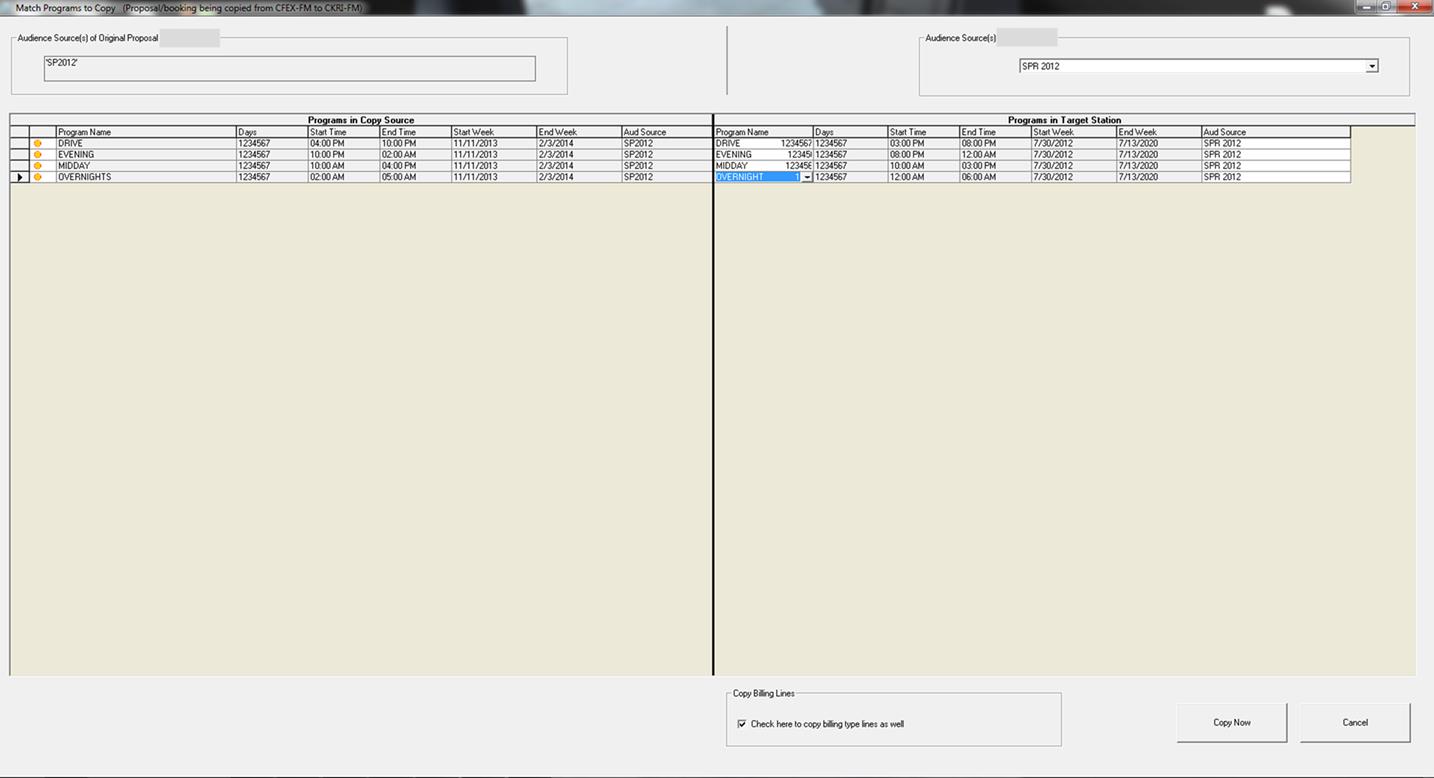
If the programs between the source and the destination station do not match, the indicator will be red and the program lines will be blank on the destination side.
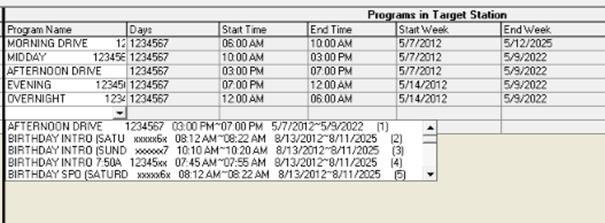
To
add in a program, simply click on the drop down and choose the program from the
list
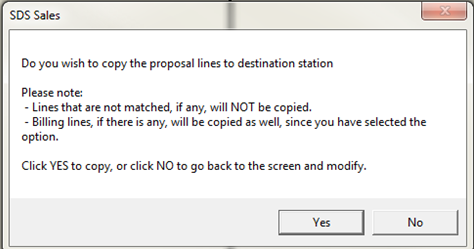
Once all selections have been made, click the Copy Now button at the bottom of the screen. A variation of the following message will appear. Once all lines are copied, any modifications to the lines can be made.