Post Analysis Method 1
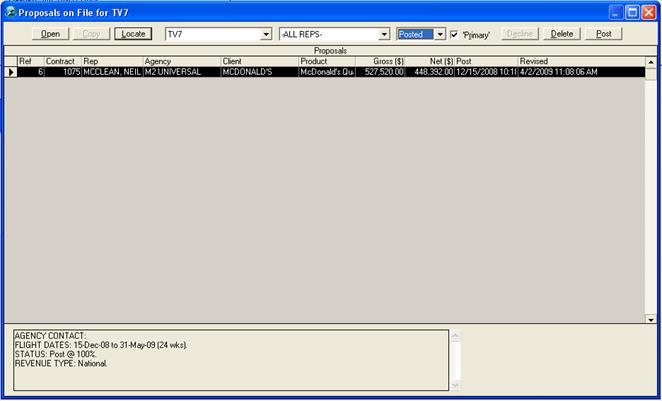
There are two ways of posting in SDS Sales. The first way is to go to Proposal File, click on the drop down and change it to booked. Next, select/highlight the booking, which you would like to Post. Once the booking is selected, click on the Post Button near the top right corner of the window.

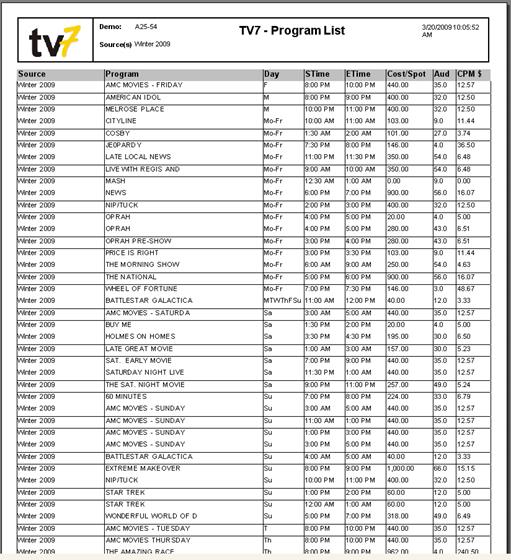
An options window will then pop up, select the Source (Audience Table/Actuals) that you would like to use to Post and check mark the options that you would like to be displayed on the Report. (Multiple Sources may be used). Click OK

The System will match up the programs to the actual information in the ActProgram & Act Aud columns. If the system is unable to find a match, you will need to manually enter the information.
You may enter comments for the client/agency in the Comment field; it will be displayed in the printout. Once you click the OK button, the following message will appear. This is validating that the correct Rate Card is being used.

Click on Yes and the Post Analysis Report will be generated. This report will list out the Estimates vs Actuals and show the difference & % Achieved. Below is an example of a Post Analysis:
Post Analysis Method 2
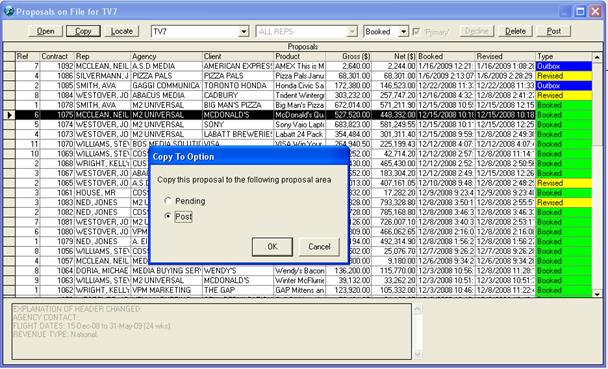
The second way to Post is to go to Proposal File, select the Booking which you would like to Post and click Copy.
A window will pop up asking you where you would like to copy to; select Post.


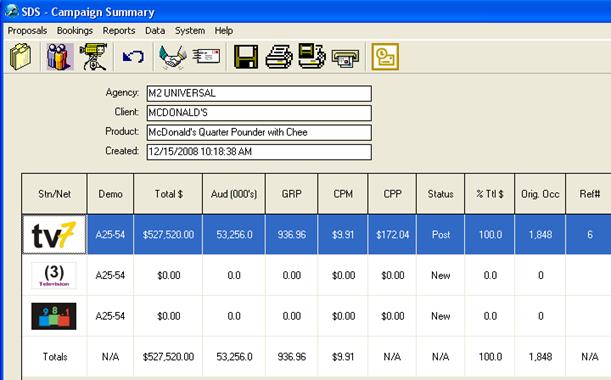
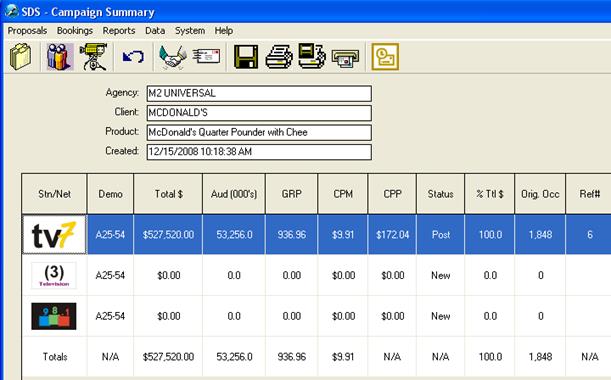
Click the Ok button. The copied contract will automatically load onto the Campain Summary page with a status of “Post”
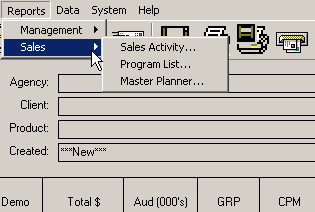
Click on
the Schedule Builder button  .
This will allow you to change the Source (Audience Table).
.
This will allow you to change the Source (Audience Table).
At the top, click on the menu “Audiences & Rates” and select Audiences from the drop down. A pop up will appear with a list of available Audience Sources. Select the one that reflects the correct “Actuals.”
Ensure that the current Audience Source is also selected
In the
Schedule Builder, click on the Magic Wand button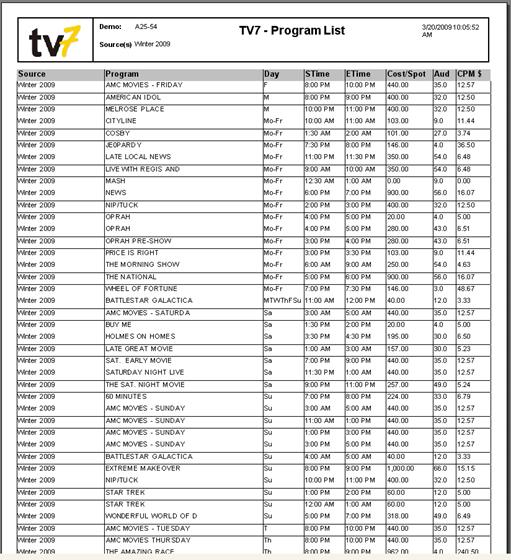 , which is located on the tool
bar.
, which is located on the tool
bar.
A window will pop up showing the able Sources to choose from, select the Actual Source, which you would like to use to Post.

Indicate whether or not you would like to change the rates (System will Default to No) and click OK.
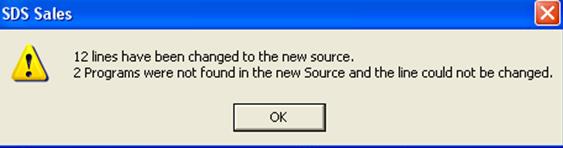
The System will change all the estimate ratings of the lines to the actual ratings; a message will appear indicating how many lines were changed. On the message below, it indicates that there were two programs that were not found in the new audience source.
This could be due to program changes that were made from the original audience source. In this case, the audience source for those two lines will not change. Click the Ok button.
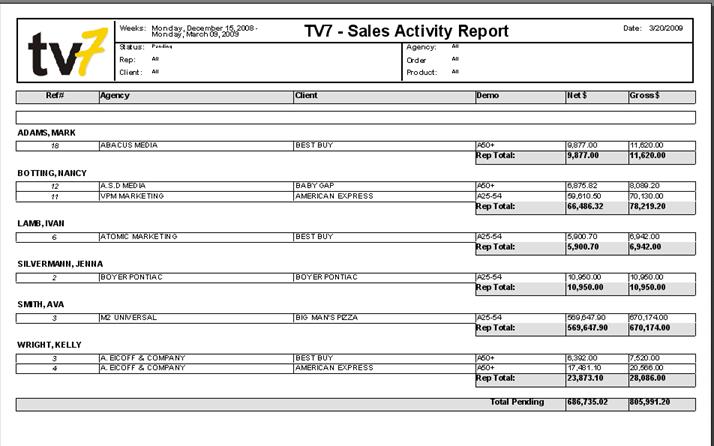
You may now print out the Proposal. The Printout will be the same format as the Proposal except with the Actual Ratings, thus allowing the Agency/Client to compare this with the Proposal you had originally sent.
The posted contract will now appear in the Posted drop down in the Proposal File