Spot Length Premiums
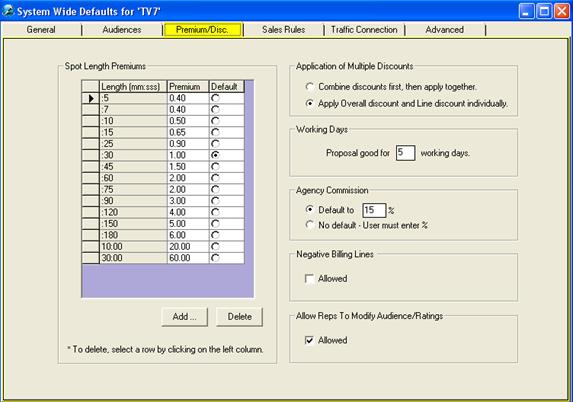
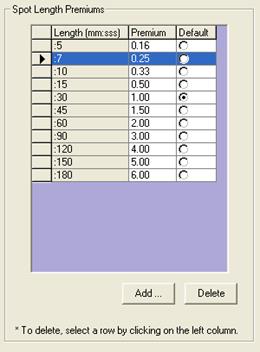
Under the Premium/Disc tab in SystemWide Settings, is where the ratio of rate for different spot lengths are set. Generally, 30 seconds is the default rate, thus it has a ratio of 1.00 in the Premium column & also is selected as Default in the next column.
When creating Audience Tables (Rate Cards) in MS-Excel for importing into the SDS System, only one rate is entered. The Spot Length, which corresponds to the rate in the Audience Table should be set to Default. Once the default has been determined, it is time to set the rate ratios of the different spot lengths. For example, if the default rate for 30 sec is $10.00 and 60 sec is $20.00 then under the Premium column for 60 sec, you should have a value of 2.00.
If the desired Spot Length is unavailable, you may add it by clicking on the Add button.
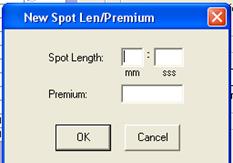
Fill in the desired length, either in seconds-format or in minutes-seconds format.
For example:
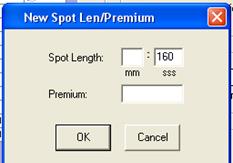
or
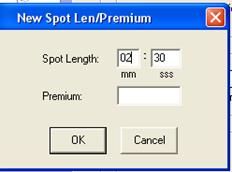
Remember to fill in the appropriate ratio to the default length rate in the Premium field and click OK.
The new Spot Length will now be added to the list of available Spot Lengths.
To delete an unwanted Spot Length, simply click on the left column (arrow). This will highlight the row; click on Delete. System will automatically check if the selected Length is in use, if so, the system will not allow you to delete it.
Discounts Setup
Here, the method of multiple discounts can be set. A Sales User will be able to apply a Line Level Discount as well as an Overall Discount. The Discount Setting in the Application of Multiple Discounts is to control how the two discounts will interact with one another.
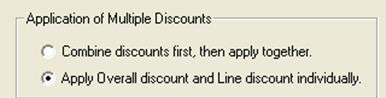
Combine discounts first, then apply together - If selected, this means that the overall & line level discounts will be combined and applied together. For example, 10% Overall Discount + 10% Line Level Discount = 20% Discount
Apply Overall discount and Line discount individually - If selected, means that the Overall Discount will be applied first followed with the Line Discount.
Proposal Footer Setting
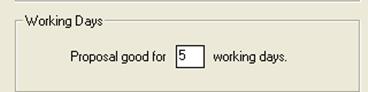
The footer can be set for Proposal Printouts. “Proposal good for x working days” will be appear on Proposal Printouts; the number of working days can be set in this area.