Setting the Printing Option Defaults at the Station Level
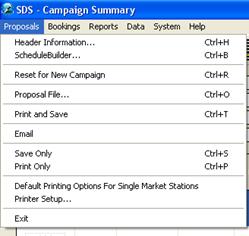
To define the printing options, click on File, and select “Default Printing Options for Single Market Stations”
The following screen displays
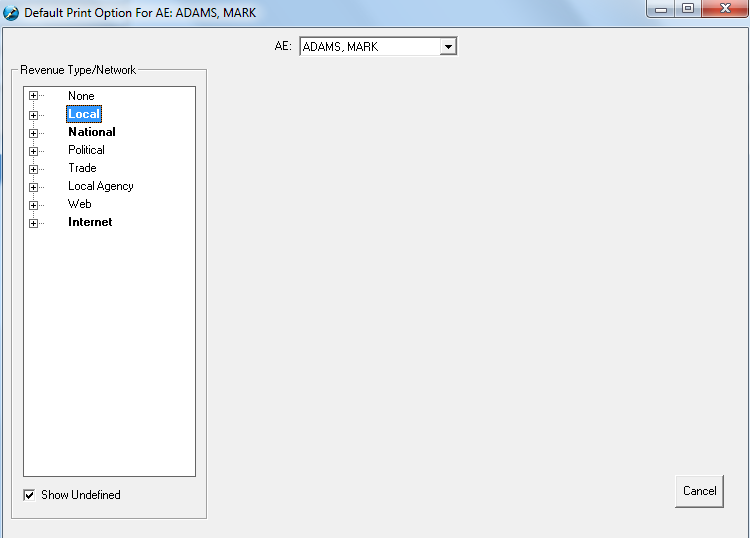
Click on the Rep name from the drop down. Under “Revenue Type/Network”, click on the + sign beside one of the Revenue Types.
The stations will appear in the list. After clicking on the station, the printing options will appear:
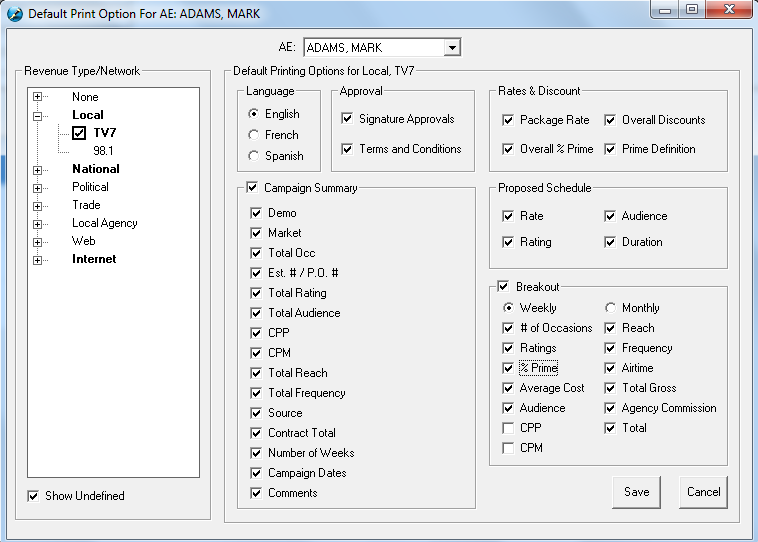
Within this screen, deselect any of the options that should not appear if the proposal/booking is set up under this Revenue Type – in this case, Local.
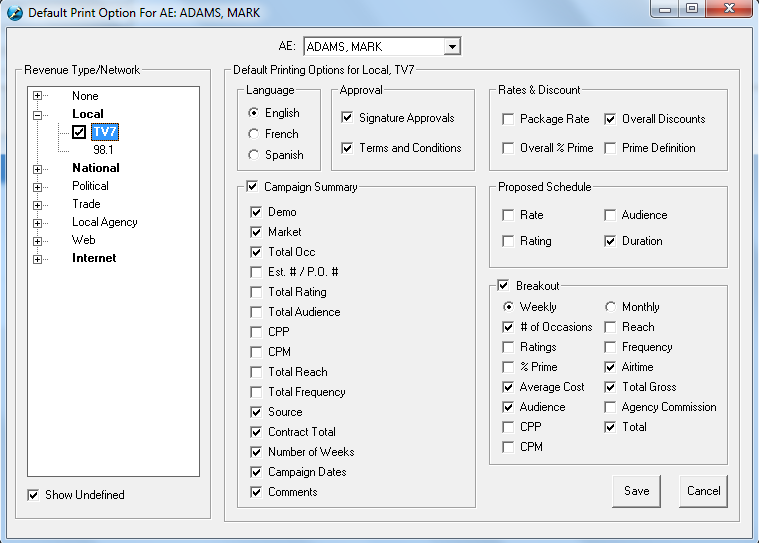
Click on the Save button to save these changes - the following message appears
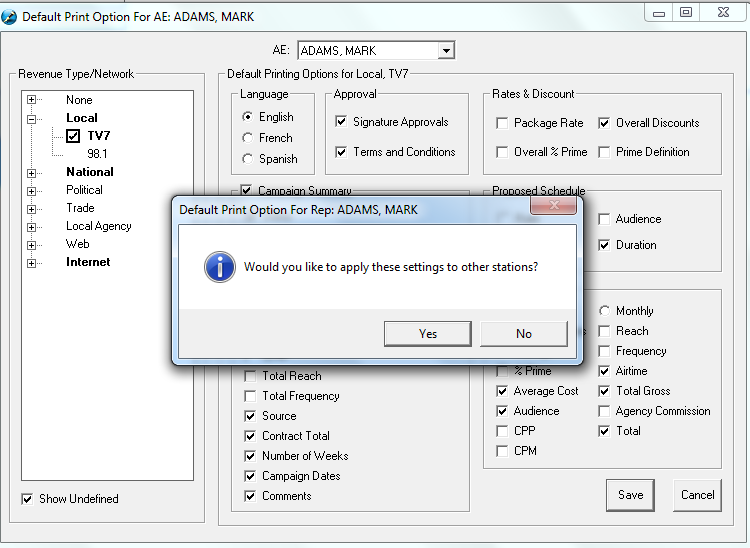
Click Yes to bring up the list of stations that these printing options can be saved to. Place a check mark beside the station
and click on the Save button
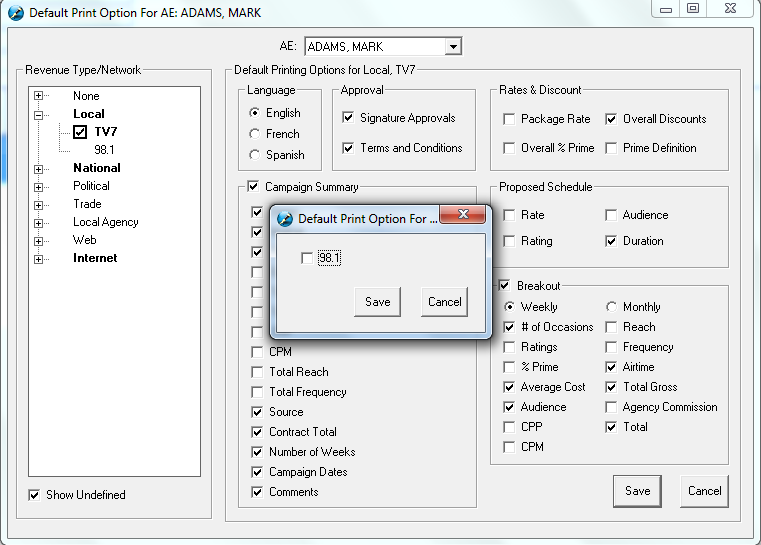
Once the default printing options have been set up, the stations will become bolded
*Note – these default printing options can be changed at any time. Simply click on the station that needs to be altered and follow the steps as outlined above.
Once a proposal is built in SDS, the settings that are defined in the Default Printing Options will appear on the printout
In the example below, the Revenue Type is set up to be Local in the Header information

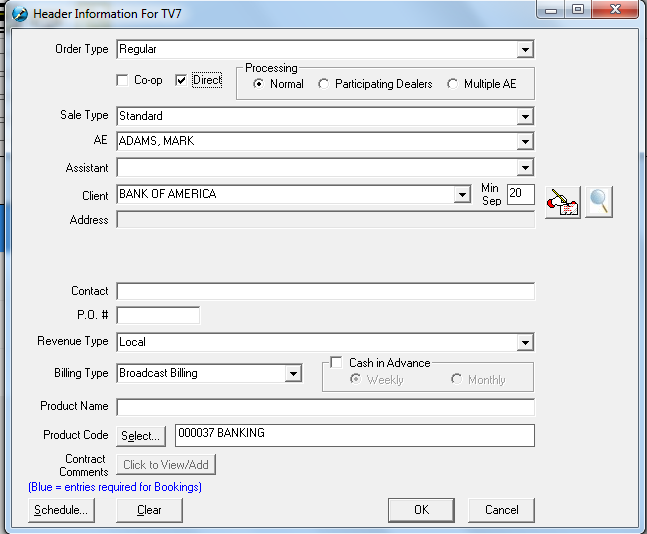
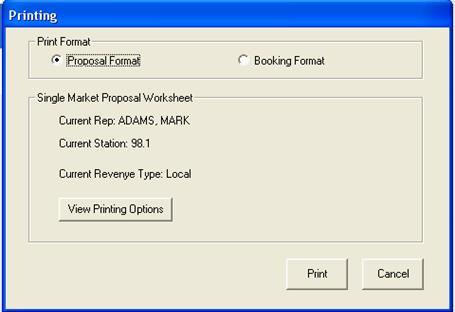
Build the submission as required and click on the print icon. The following screen will appear. There is still the option to print it in the proposal format (which will generate a print preview), or the booking format (which will send it directly to the printer. Note that there aren’t any print options definable for the booking format). In this instance, Proposal Format has been selected.
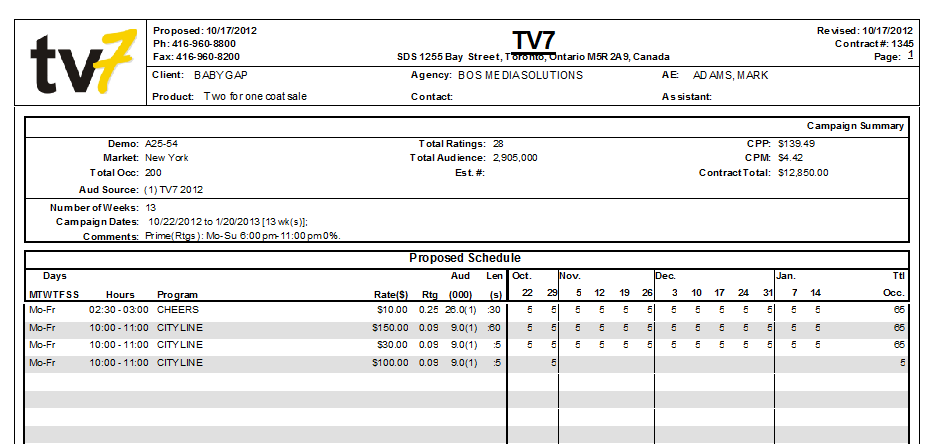
Next, click on the print button to generate a print preview. As defined in the printing options, the Rating and Audience are not appearing in the campaign summary, and the rating and audience isn’t appearing in the Proposed Schedule. On the second page in the Weekly Breakout, the ratings, audience, CPP, CPM, and agency commission line is not appearing on the printout. From here the proposal can be printed or saved as a .PDF
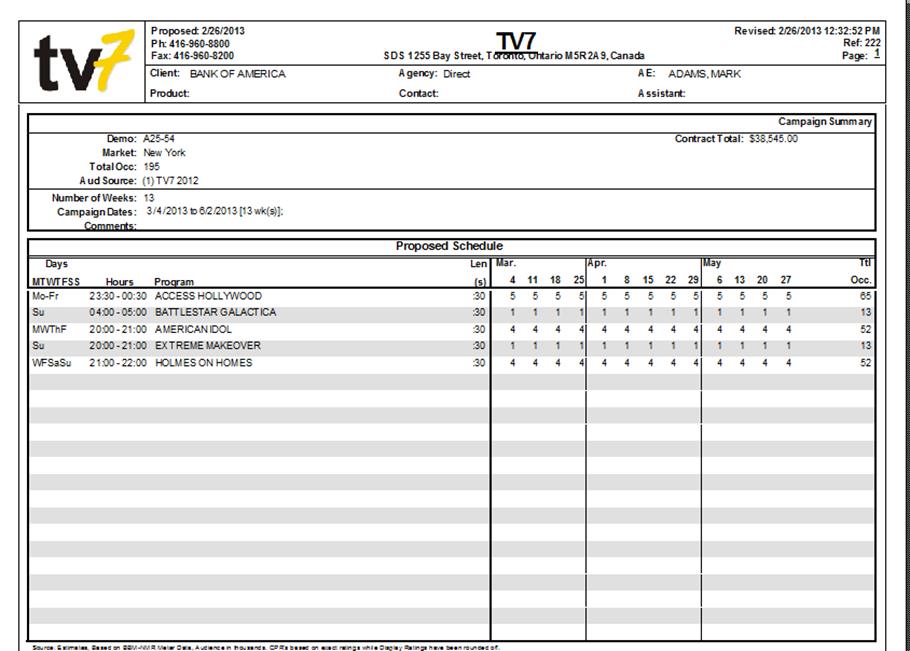
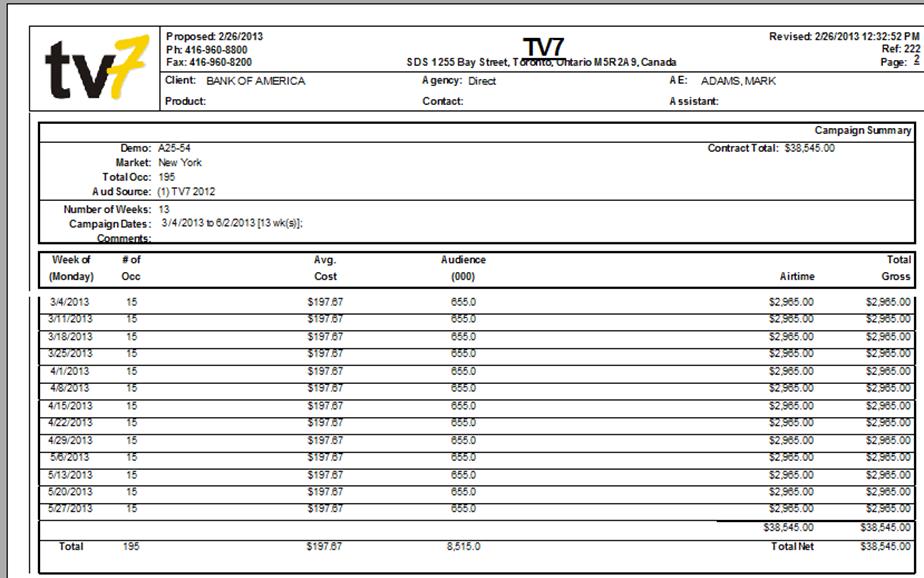
Although the default print settings have been set up for the Revenue Type “Local”, it can be changed for an individual proposal/contract.
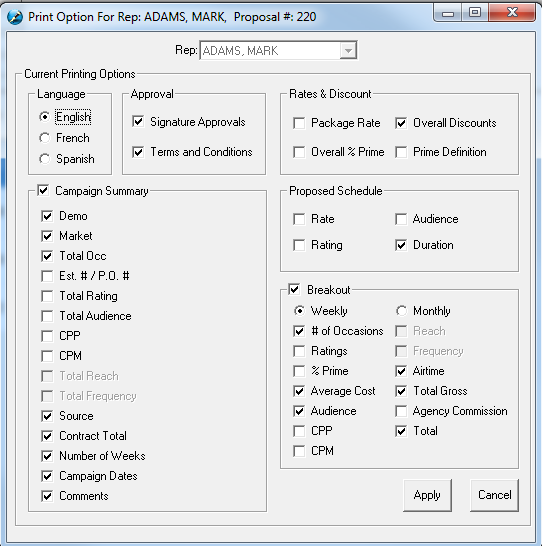
Click on the print icon again. The same screen will appear. Click on the button “View Printing Options”
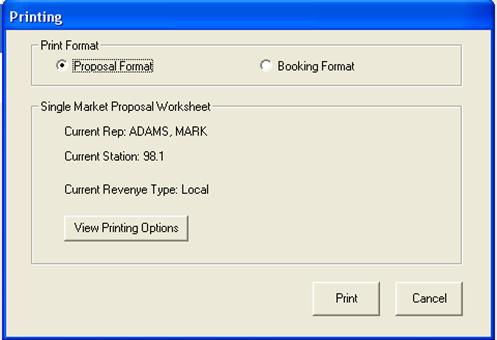
The printing options box will appear on screen – here, the options can be changed and it will only affect this proposal/booking; it will not change the defaults that have already been saved for the revenue type. Once changes have been made, click on the apply button and print the proposal/booking
Once the proposal has been accepted by Traffic, the Proposal printout will show the contract number

In this instance, Booking Format has been selected.

The printing options box will appear on screen – here, the options can be changed and it will only affect this proposal/booking; it will not change the defaults that have already been saved for the revenue type. Click on the ‘View Printing Options’ button. This will bring up your Booking Print Options. Once changes have been made, click the ‘OK’ button and print the booking format.

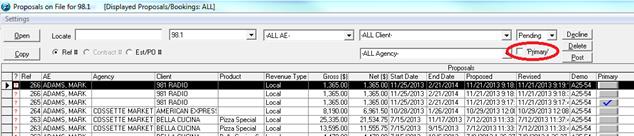
Once changes have been made, click the ‘OK’ button and print the booking format.
Once the printing options have been selected, click on the ‘Print’ button and a print preview will pop up and allow you to save as a .pdf file, email or print the in Booking format.