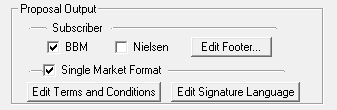
This information will appear at the footer of Proposal Printouts, showing which subscriber information was used to create the Proposal. You can also Edit the Footer, Terms and Conditions and Signature.
In SDS Sales, Double click on the station you wish to edit.
 Select
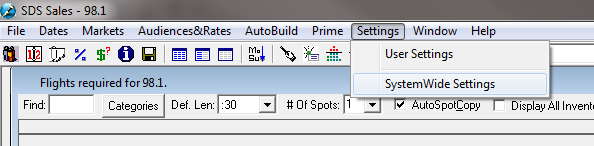
Settings->SystemWide Settings and click on the General tab.
Click
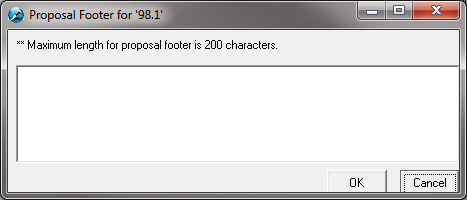
“Edit Footer”. A 200 Character text box will appear. Enter the
contents of the Footer and press OK to save changes.
Select
Settings->SystemWide Settings and click on the General tab.
Click
“Edit Footer”. A 200 Character text box will appear. Enter the
contents of the Footer and press OK to save changes.
In SDS Sales, Double click on the station you wish to edit.
Select
Settings->SystemWide Settings and click on the General tab.
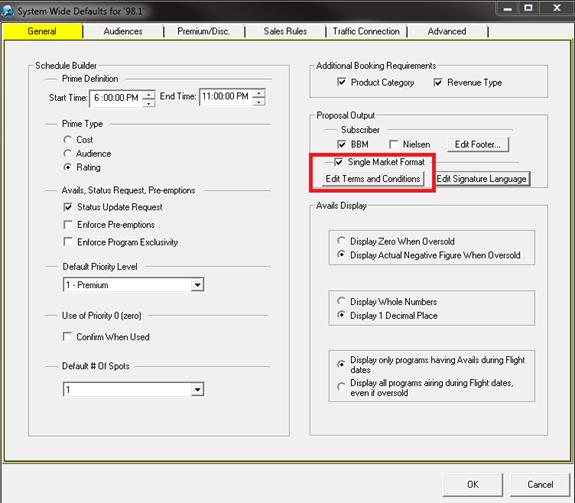
Under Single Format Layout, click on the “Edit Terms and Conditions”
button. A Large text box will appear. Enter or Paste text and press
OK to save.
In SDS Sales, Double click on the station you wish to edit.
Select
Settings->SystemWide Settings and click on the General tab.
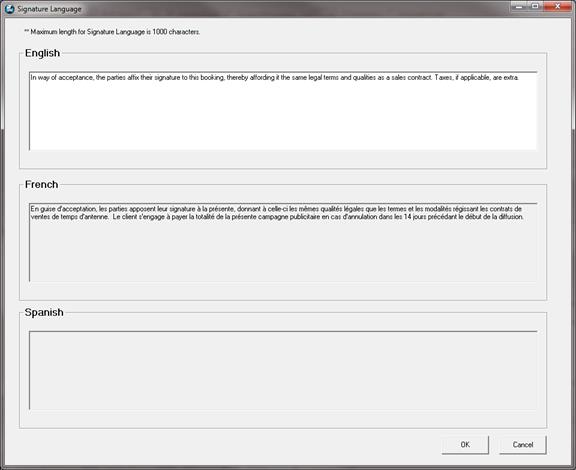
Under Single Format Layout, click on the “Edit Signature Language” button.
A window with three text boxes will appear. Enter content in the
appropriate language and press OK to save changes. The proposal will use
the language as selected in the printing options.
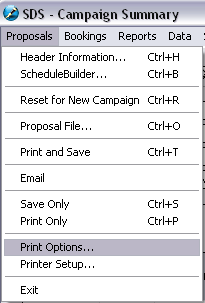
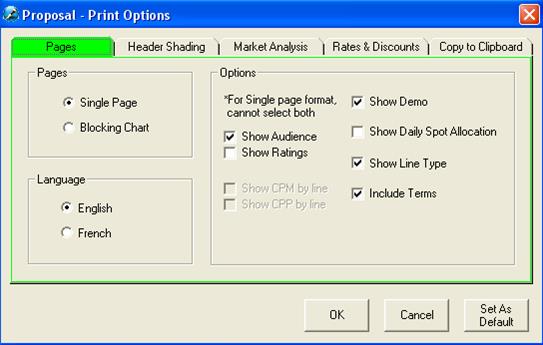
To ensure that the Terms and Conditions print on the proposals, the Account Executives will need to set that option in their Printing Options (for multi-market stations)