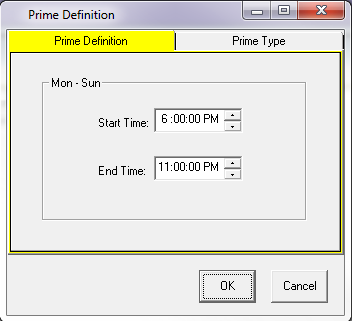
. Next build the schedule as you
normally would, adding a flight period and selecting programs/rotations from the
list by double clicking on each of them
. Next build the schedule as you
normally would, adding a flight period and selecting programs/rotations from the
list by double clicking on each of themThe Master Planner Report is similar to the Program List Report, however it offers more detail. The report will display the Audience figures of multiple Demos for each program/rotation from a specified Audience Table.
There are two ways to create a Master Planner. The first is to click on Reports and select Sales, Master Planner. This will create a report for all programs available on the selected station.
The
second option is to build a schedule in the Schedule Builder and create a Master
Planner from the chosen programs. To complete this option, click on the
camera icon on the Campaign Summary page . Next build the schedule as you
normally would, adding a flight period and selecting programs/rotations from the
list by double clicking on each of them
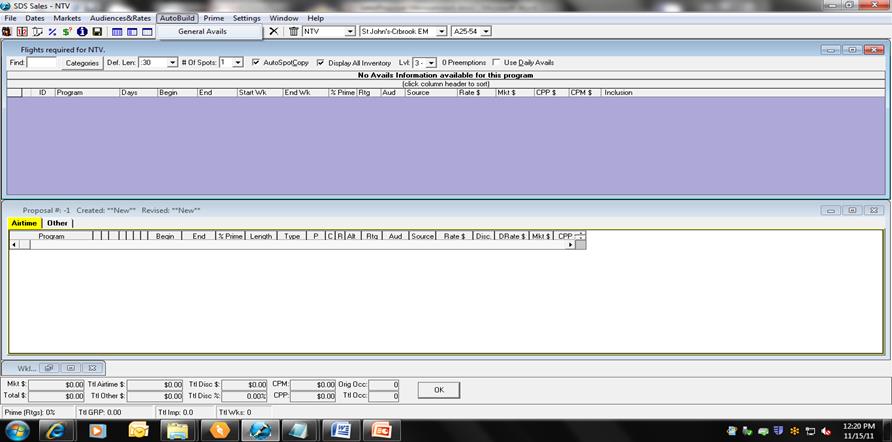
Next, click on Markets at the top of the menu and select Master Planner
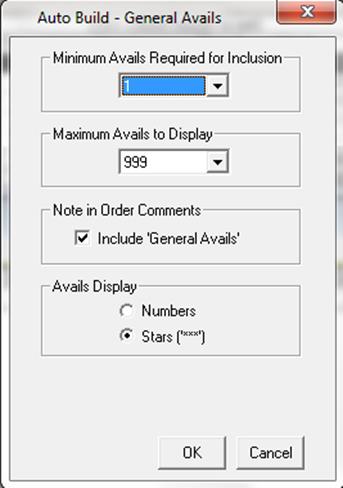
The following screen will appear. Click on the “Select” button in each of the Line Type, Market, and Demographic columns to choose options; click on Do Report.
*Note – there is an option to suppress the display of market ratings and rate; simply put a check mark beside each of those options

The report will look similar to the following