 within
the Campaign Summary screen.
within
the Campaign Summary screen.To use the Ranker report within SDS sales module. Click on
the Ranker icon within
the Campaign Summary screen.
A new screen will appear displaying options for the Ranker report.
Creating a Ranker Report
1. Select
the Survey button 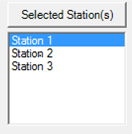
2. Highlight survey to report on. Click OK
3. Select either ‘All Stations’ or ‘Mkt Covered Stn’ and then select the market from the dropdown.

All Stations: Show all stations regardless of market
Mkt Covered Stn: Show only stations in selected market
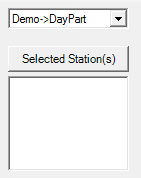
4. From the dropdown select how the Ranker will group information.
(Demo è Day Part) or (Day Part è Demo)
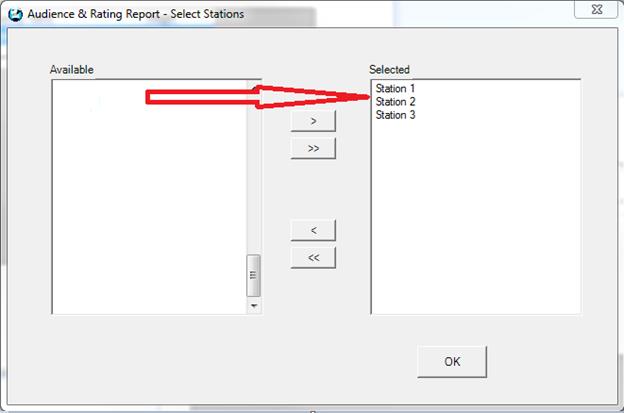
Click the Selected Station(s) button
Select the Station(s) to include in the report.
Click OK and the selected stations will display

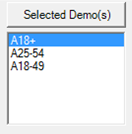
5. Click the Selected Demo(s) button
Select the demo(s) to include in the report.

Click OK and the selected Demos will display

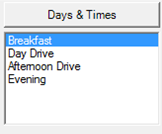
6. Click the Days & Times button

Select the Day Parts to display in the report.
Create New, Modify or Delete Day Parts using the buttons below.
Click OK and the selected Day Parts will display

7. To include a graph, check the Print Graph box and choose either Column, Bar, Pie or Line from the dropdown.
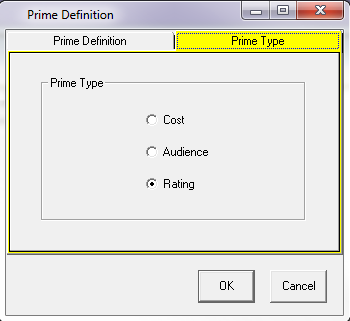
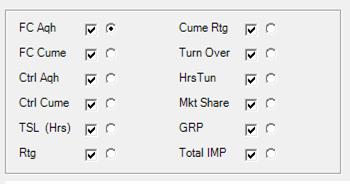
8. Choose
options to display using the check boxes 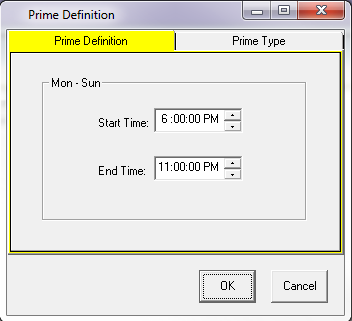
Choose radio button  to sort (rank) the report by.

9. Stations can be highlighted by selecting stations above.

10. Click Process to create the Ranker report. Reports can be printed, emailed or saved as a PDF.
NOTE: Ranker will remember selections when closed. Use the save option to store different versions of the report for later use.