Retrieving Proposals
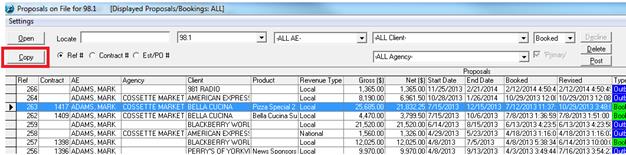
Once the Proposal which you have created has been saved, a reference number will be assigned to it. To retrieve a proposal, first select/highlight the Station which the proposal was created on, then click on the Proposal Files button from the Campaign Summary Window.
A window will pop up and display the Pending Proposal, which you have created for this Station. Simply double click on the desired Proposal to open.

You may also use the Locate function to find the Proposal faster if you have the Reference # of the proposal you are looking for. Enter the Ref# and press the Enter Key.
To narrow down the list at any time, apply a filter using one or more of the drop down menues.
Once you have opened the Proposal, you will be sent back to the Campaign Summary window. You may now double click to go into the Schedule Builder to make further revisions or book the proposal (See Booking Proposal section).
For each Proposal, the system keeps a history of each revision, which has been done on the proposal. To access the history, simply uncheck Primary from the top of the screen, you should now see the history of all Proposals. You may open a previous version of the Proposal and save it to have it become the Primary.
User Settings in Proposal File
The settings in this area give the ability to filter by date a list of active orders. It is great to have ready access to a complete history of orders, but it can make the Proposal File cluttered and difficult to navigate. This setting help eliminates that clutter.
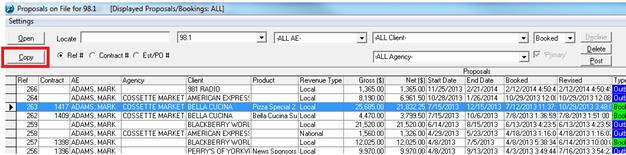
When you open up your Proposal File, there is an option labeled ‘Settings’ in the upper left hand corner of the screen. Click on it, and select ‘User Settings.’
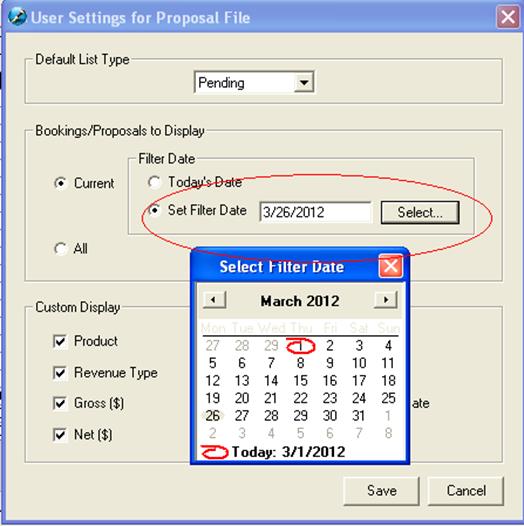
The following screen will appear, allowing you to select your default view in your Proposal File.
To begin, select which list type you want to set up (Pending, Booked, etc.). Next, you can select the time frame which you would like to see in each folder. Current will limit the display to Current orders. You can also select your Custom Display – select which fields you’d like to see in your Proposal File. Here, you can select from the usual fields, as well as 2 new fields: Start Date and End Date.
If you want to select a specific date range to filter out your bookings, you can use the ‘Set Date Filter’ option and select your date range.
When you open your Proposal File, your date range filter option will display at the top of the screen for easy identification.

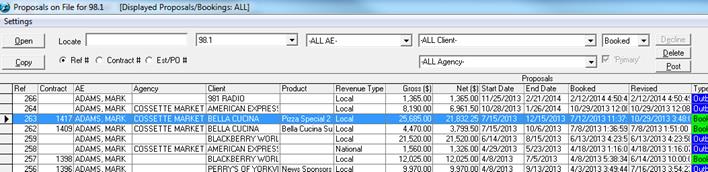
Within the custom display, you can remove certain columns to see only specific information. Below is an example of columns removed.